
Canva Print Design: What Your Printer Needs You to Know
If you’re using Canva to design your print materials, you’re not alone as it’s become very popular. It’s a brilliant tool for getting ideas onto a page quickly, and the results can look great on screen, but good Canva print design is about more than how a layout looks in your browser. What arrives in a print file isn’t always what you saw on screen, and those differences can cause real problems once your job reaches the press.
We see Canva files every week at Riverside Printers, and most issues are entirely avoidable. Here’s the printer’s-eye view of what to do before you export and full details throughout the full blog.
Quick Answer: How do I prepare a Canva design for print?
Set up your design at the true finished size, use images of at least 300dpi, and add bleed. Then download as PDF Print with crop marks and bleed switched on, choosing CMYK where your plan allows it. Check fonts and colours, and ask your printer to review the file before it goes to press.
How Do I Export a Canva Design as a Print-Ready PDF?
In Canva, go to Share, then Download, and choose PDF Print as the file type.
In advanced settings select Crop marks and bleed, and Flatten PDF
This is the option built for professional printing.
Why it matters:
- PDF Print exports at much higher quality and includes the data your printer needs, such as crop marks and bleed.
- Standard PDF is compressed for screen viewing and can lose detail.
- PNG and JPEG are pixel-based files. They are often low resolution, especially if they have been resized.
If you only remember one thing from this guide, make it this: choose PDF Print, not a screen format.
What Is Bleed, and Why Do Crop Marks Matter?
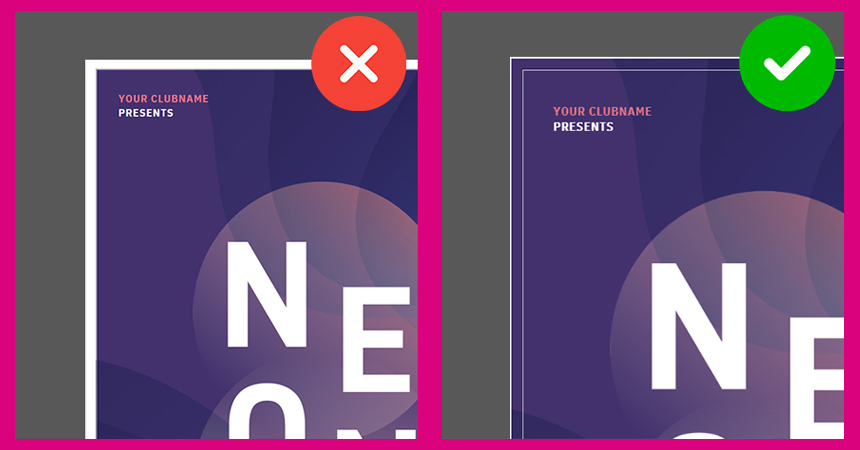
Bleed means your design extends a few millimetres beyond the final cut size. Printers typically ask for a minimum of 3mm on every edge. It means that if the guillotine moves very slightly, you won’t end up with a thin white border on the finished piece.
Crop marks show the operator exactly where to cut. Turn both on in the PDF Print download settings.
To allow for bleed in your artwork setup follow these steps:
- From the menu bar, select File then Rulers & Guides
- Select Show Print Bleed. A border of dashed lines will appear close to the edges of your design. This bleed margin is fixed based on print production standards and cannot be adjusted
- If you see white gaps around the design edges, resize or stretch your background to cover them. Stretch elements, that you don’t mind being cut, around the edges as well
- Keep any important text and logos at last 5mm from the finished edge.
How Should I Set Up Canva Colours for Print?
Screens display colour in RGB. Print uses CMYK. Canva works in RGB by default, so some colour shift when your file is converted for print is very likely.
A bright, glowing blue or a vivid neon on screen can look noticeably duller on paper because it sits outside the CMYK range.
Here is how to keep control:
- Check the colour profile option. Canva’s PDF Print download includes a colour profile choice, and CMYK export is available on Canva paid plans. Where it isn’t available to you, expect your printer to convert the file.
- Avoid very saturated colours. Neons and ultra-bright tones are the most likely to change.
- Use a reference for brand colours. For anything brand-critical, supply a CMYK or Pantone reference to your printer.
- Ask for a printed proof. Even with a CMYK export, colours can still shift. An online CMYK converter gives an approximate idea, but a physical proof is the safest way to see the real result if you’re unsure.
- Talk to us before you start designing. A quick conversation early on saves a lot of rework later.
How Can I Check Resolution Of A Canva Design?
A simple test: zoom to 200 or 300 per cent in Canva. If images look blurry on screen, they will print blurry. Make sure any photos or graphics you upload are high resolution to begin with, because Canva cannot add detail that isn’t in the original.
If you’re unsure, send over the artwork and we’ll be happy to take a look.
What Size Should I Make My Canva Document for Print?
Set up at the actual finished size from the start, not at a social media size. For example:
- A5 flyer: 148mm x 210mm, plus bleed
- Business card: 85mm x 55mm, plus bleed
Avoid designing large and scaling down. It changes the relative size of your text and elements, and can leave you with type that is smaller than you intended.
Which Fonts Work Best for Print in Canva?
Thin or decorative fonts at small sizes can become hard to read, especially on uncoated paper where ink spreads slightly. As a guide:
- Keep body text at 8pt or above.
- Avoid thin weights below 10pt.
- Test fine serifs and hairline strokes at their actual print size.
On embedding, Canva’s PDF Print option generally embeds fonts into the file, so the text should appear as designed. If you are unsure, check the PDF document properties, or send it to us and we’ll look for any problems. Stick to Canva’s built-in library, or make sure any custom fonts are licensed for commercial print.
What Happens When Your Canva File Reaches Our Print Team?
If a file arrives without bleed, at low resolution, in the wrong format, or with unconverted RGB colours, we flag it before it goes to press and recommend the best steps to make amends before production where necessary. That check is part of how we protect your job. The quicker artwork is approved, the quicker your job gets on press.
Frequently Asked Questions
Should I use PDF Print or standard PDF in Canva for printing?
Use PDF Print. It exports at higher quality and supports the crop marks and bleed your printer needs. Standard PDF is compressed for screen viewing and can lose detail.
Does Canva support CMYK for print?
Canva’s PDF Print option includes a colour profile choice, and CMYK export is available on paid plans. If it isn’t available to you, your printer can convert the file, but some colour shift is likely.
How much bleed do I need on a design?
Printers typically ask for a minimum 3mm on every edge.
What resolution should images be for print?
Aim for 300dpi at the final print size. Zoom to 200 or 300 per cent in Canva to test it. If an image looks blurry on screen, it will print blurry.
Will the colours in Canva match my printed result?
Not always. Screens use backlit RGB and print uses CMYK, so colours can still shift, particularly bright or saturated shades. For brand-critical colours, use a CMYK or Pantone reference and ask for a physical proof.
Are my fonts embedded in a Canva PDF?
Canva’s PDF Print option generally embeds fonts, but it is worth checking. If you have any doubt, send the file to your printer to check for problems before it goes to press.
Get in Touch Before You Export
Unsure about any of this? Contact us before you finalise your design. We can talk you through setup, check colour choices and advise on file format, so your Canva print design looks as good on paper as it does on screen.
sales@riversideprinters.co.uk
01536 521 199
About Riverside Printers
Riverside Printers is a full-service commercial printer based in Corby, Northamptonshire, established in 2009. We run lithographic, digital, large format and specialist finishing print under one roof. Everything is produced in house by our own team, that means consistent quality and brand across all formats, tighter control of deadlines, and a single point of contact who is accountable if anything needs to change.
Whether you’re sending a Canva file or fully developed artwork, our team is here to help you get it right.